Showing posts with label Spreadsheets Tutorials. Show all posts
Conditional Formatting 101
Posted by Unknown
Posted on May 18, 2017
with 1 comment
Labels:
Excel Hacks,
Spreadsheets Tutorials
Uses of SMALL function in MS Excel
Posted by Unknown
Posted on June 30, 2016
with No comments
In this tutorial we are going to discuss about SMALL Function.
This article will help you to
- Understand the Small function.
- Uses and requirements of Small function.
- Syntax of SMALL function.
- Description of small function.
Small Function:-
Formula name :- SmallFormula Syntax:- =SMALL(array, k)
Array (Required) An array is a range of numerical data for which you want to determine the k-th smallest value.
K (Required) numerical value position (from the smallest) in the range of data to return.
Uses of SMALL Function:- this formula is basically uses to determine the #number of smallest number from a data set.
see the video example below:
Please right your questions in to comment box.
Happy learning
Vikash kumar
Happy learning
Vikash kumar
Labels:
Spreadsheets Tutorials
Uses of Left and Right Formula
Posted by Unknown
Posted on June 28, 2016
with No comments
In this tutorial we are going to discuss about Left And Right formula.
This tutorial will help you to
- Understand the meaning Left and Right formula.
- Uses Of Left and Right Function.
- Syntax and requirements of Left and Right formula.
Watch the full practice video for better understanding:
Left Function:-
Formula name :- LeftCategory :- Text Formula
Formula Syntax:- =LEFT(text, num_chars)
In this formula Text can be a word or group of numbers and it is mandatory factor of the formula and num_chars must be a numeric value and it is optional factor of formula also.
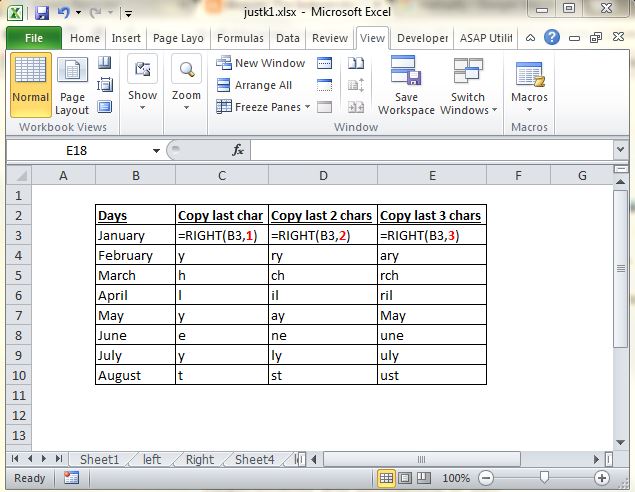
Uses of Left Formula:- This formula is basically uses for to copy characters from left from a cell. Like we have a data like below and we want their initials or first character so either we copy each row manually or by use the Left formula.
Example :-
Right Function:-
Formula name :- RightCategory :- Text Formula
Formula Syntax:- =RIGHT(text, num_chars)
Requirements and Limitations of Right formula:-
In this formula Text can be a word or group of numbers and it is mandatory factor of the formula and num_chars must be a numeric value and it is optional factor of formula also.
Uses of Right Formula:- This formula is basically uses for to copy characters from Right from a cell. Like we have a data like below and we want their few last of characters or only last character. So either we copy each row manually or by use the Right formula.
Example :-
Thanks and happy learning
Neeraj kumar
Labels:
Spreadsheets Tutorials
How Do I convert days counts in to #Year, #Months, #Days
Posted by Unknown
Posted on December 02, 2015
with No comments
On the my colleague walked up to me and asked
Vikash, How Do I convert days counts in to #Year, #Months, #Days.
Like 689 to 1 Year, 10 Months, 24 Days.
So i did some exercise and share a formula with him for the same and sharing with public also. I hope it will helpful for others.
Suppose that your days count is in to the cell A2
Then formula will be:-
=INT(A2/365)&" Years, "&INT((A2-(INT(A2/365)*365))/30)&" Months, "&A2-(INT(A2/365)*365)-(INT((A2-(INT(A2/365)*365))/30)*30)&" Days"
Replace A2 with the required same.
Note: - A little error in with this formula, it will count only 30 days per month not 31 days.
Labels:
Spreadsheets Tutorials
MS excel training module (fundamentals)
Posted by Unknown
Posted on February 26, 2015
with 1 comment
MS excel training module (fundamentals)
Hi all,
I got an opportunity in my company to provide a training to associates, about MS Excel basics. so i prepared a MS excel training module (fundamentals). A ppt file ( MS Excel Training(Basic) ) and a .xlsx support file for ppt ( MS Excel Training(Basic) )
I would like to share with you, so you can get some knowledge, never forget that your suggestions are very important for me.
You can download files for following links
MS excel training module (fundamentals) PowerPoint presentation.
MS excel training module (fundamentals) MS excel support file.
Labels:
Spreadsheets Tutorials
Case converter or Macro for change case
Posted by Unknown
Posted on December 22, 2014
with No comments
Case converter or Macro for change case
Hi all Here in my office I have to change case of multiple ranges on daily bases, it`s very time consuming. So to solve this I create a macro , it`s very fast. You can also try this,
Just paste this code in your module and save.
Case converter or Macro for change case
Always save this file as Macro Enabled Excel Workbook
'case converter By Vikash
Sub CaseConverterByVikash()
'case converter By Vikash
Dim ocell As Range, ans As String
ans = Application.InputBox("Type in Letter" & vbCr & _
"(L)owercase, (U)ppercase, (S)entence, (T)itles ")
If ans = "" Then Exit Sub
For Each ocell In Selection.SpecialCells(xlCellTypeConstants, 2)
Select Case UCase(ans)
Case "L": ocell = LCase(ocell.Text)
Case "U": ocell = UCase(ocell.Text)
Case "S": ocell = UCase(Left(ocell.Text, 1)) & _
LCase(Right(ocell.Text, Len(ocell.Text) - 1))
Case "T": ocell = Application.WorksheetFunction.Proper(ocell.Text)
End Select
Next
End Sub
.
Always open this file to perform this Macro
You can Also Download Exercise file from here Case converter or Macro for change case
Thanks in advance.
Labels:
Spreadsheets Tutorials
Find a special character with conditioins like (after any character or before any character)
Posted by Unknown
Posted on December 15, 2014
with No comments
Hi, i got a question from your side, the question is how can i find a special character with conditions like (after any character or before any character). I got some data also see the image below:-
Follow this simple steps.
STEP-1. we have to find something common(in array) and unique(in cell) here that value is "@"
STEP-2. Find our required character, here that is "."(dot)
Step-3. finalizing the formula
Thanks in Advance.
Click here to download Exercise file. for further please contact.
Labels:
Spreadsheets Tutorials
How can I count a specific character in a single cell
Posted by Unknown
Posted on December 10, 2014
with No comments
Q . How can I count a specific character in a single cell ?
Ans. In simple way there in no way to count a character in a single cell, but you can do it with different way.
Follow this
Step1. Calculate length of the Cell with “=Len” formula. Shown below-
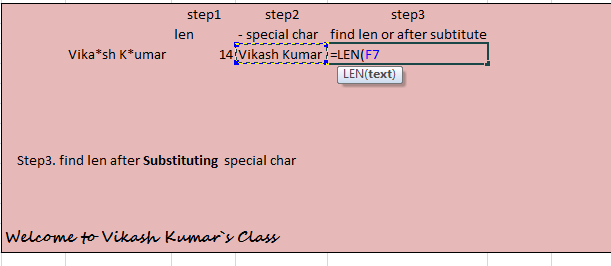
Step2. Substitute special character, with “=Substitute” Formula. See image below-
Step3. Find length of the cell after substitute.See image below-
Step4.Calculate Substitute of both lens (step2.-step3.). See image -
Step5. Merge the all formulas. see image-
Click here to get Exercise file Count A Specific Character in a Single Column .Thanks In advance.
Labels:
Spreadsheets Tutorials