Hi friends Welcome to independent learning, I am here with another great topic.
How to insert drop down list in excel
A Facebook friend were ask me to create the Searchable drop down menu in excel. So i have tried and hoping that this will help him.
In this article i will show you how to create a Searchable drop-down menu in excel. This Drop down will work like google search engine and you will be able to fetch data within a second from your resource directory.

I assume that your excel is compatible with macro and you have enabled the Developer Toolbar, and saved your file as .xlsm format. If you don't get this done, please do it first.
Step 2- Click Options.
Step 3- And in the Options dialog box, Click Customize Ribbon.
Step 4- Check the Developer box, then click the OK button.
Step 2- Click Excel Options.
Step 3- And in the Excel Options dialog box, Click Popular Tab.
Step 4- Check the Show Developer tab in the Ribbon box, then click the OK button.
Now you are all set for the preparation on Searchable Drop down list.
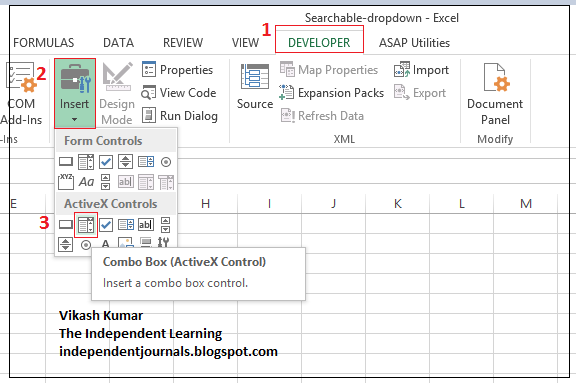
Step 1. Click Developer bar >> Click Insert >> In ActiveX Controls sector select Combo Box to insert the same. See below:
Step 2. Draw the Combo box by Clicking and Dragging. Right Click the Combo box and then click on Properties.
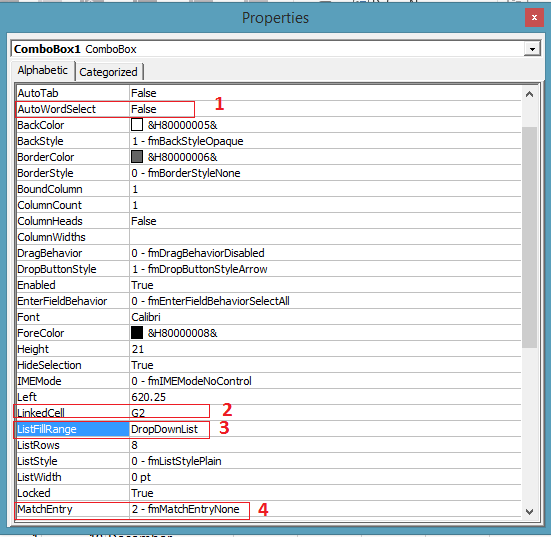
Step 3. In Properties Dialog box please make following changes.
(a) Select False in the AutoWordSelect field.
(b) Specify a cell in the LinkedCell field. In this case, we enter G2.
(c) Select 2-fmMatchEntryNone in the MatchEntry field.
(d) Type DropDownList into the ListFillRange field then close.
See Below:
Step 4. Paste all your data in Column A.
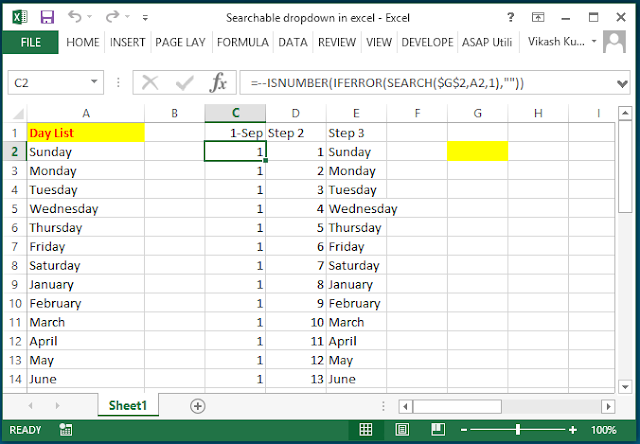
Step 5. Paste this formula in the cell C2 =--ISNUMBER(IFERROR(SEARCH($g$2,A2,1),"")) and drag till last data cell In Column A. See Below:
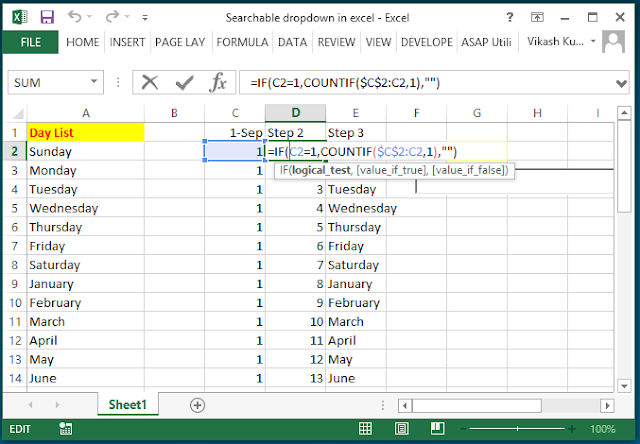
Step 6. In Cell D2 Put this formula =IF(C2=1,COUNTIF($C$2:C2,1),"") and drag till last data cell In Column A. See below:
Step 7. In Cell E2 paste this formula =IFERROR(INDEX($A$2:$A$9,MATCH(ROWS($D$2:D2),$D$2:$D$9,0)),"") and drag till last data cell In Column A. See Below:

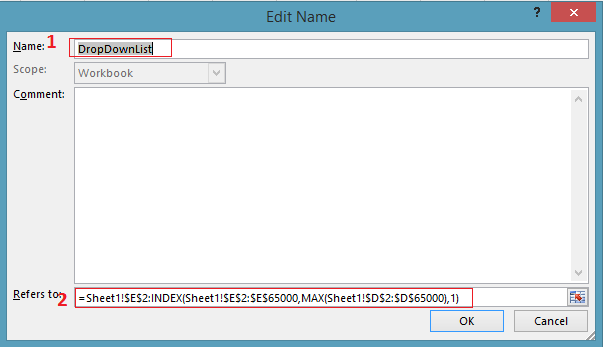
Step 8. Click On Formulas bar >> Click on Define Name >> Type "DropDownList" in the Name field.
Step 9. Put this =$E$2:INDEX($E$2:$E$9,MAX($D$2:$D$9),1) formula in Refers to box. Then Click Ok. See Below:
 Step 10. Dubble click the Combo Box that you inserted. VBA editor window will appear. Copy and paste the below mentioned code in the VBA editor.

Step 11. Close the VBA editor, And deselect the Design mode. And your Searchable drop down list in excel is ready.
Please Download the practice file from here
Must watch the practice video. this will help you to understand the topic.
Please share this article if you like . Stay tunes for further videos
Feel free to reach us. Info.indelearning@gmail.com
Thanks in Advanced.
Happy Learning
How to insert drop down list in excel
A Facebook friend were ask me to create the Searchable drop down menu in excel. So i have tried and hoping that this will help him.
In this article i will show you how to create a Searchable drop-down menu in excel. This Drop down will work like google search engine and you will be able to fetch data within a second from your resource directory.

I assume that your excel is compatible with macro and you have enabled the Developer Toolbar, and saved your file as .xlsm format. If you don't get this done, please do it first.
Setting Up things:
In Excel 2010 and 2013
Step 1- Click File Menu.Step 2- Click Options.
Step 3- And in the Options dialog box, Click Customize Ribbon.
Step 4- Check the Developer box, then click the OK button.
In Excel 2007,
Step 1- Click Office button (Top most left, looks like windows logo)Step 2- Click Excel Options.
Step 3- And in the Excel Options dialog box, Click Popular Tab.
Step 4- Check the Show Developer tab in the Ribbon box, then click the OK button.
Now you are all set for the preparation on Searchable Drop down list.
Watch the full practical video
Please follow the below mentioned steps carefully:
Step 1. Click Developer bar >> Click Insert >> In ActiveX Controls sector select Combo Box to insert the same. See below:

Step 2. Draw the Combo box by Clicking and Dragging. Right Click the Combo box and then click on Properties.
Step 3. In Properties Dialog box please make following changes.
(a) Select False in the AutoWordSelect field.
(b) Specify a cell in the LinkedCell field. In this case, we enter G2.
(c) Select 2-fmMatchEntryNone in the MatchEntry field.
(d) Type DropDownList into the ListFillRange field then close.
See Below:

Step 4. Paste all your data in Column A.
Step 5. Paste this formula in the cell C2 =--ISNUMBER(IFERROR(SEARCH($g$2,A2,1),"")) and drag till last data cell In Column A. See Below:

Step 6. In Cell D2 Put this formula =IF(C2=1,COUNTIF($C$2:C2,1),"") and drag till last data cell In Column A. See below:

Step 7. In Cell E2 paste this formula =IFERROR(INDEX($A$2:$A$9,MATCH(ROWS($D$2:D2),$D$2:$D$9,0)),"") and drag till last data cell In Column A. See Below:

Step 8. Click On Formulas bar >> Click on Define Name >> Type "DropDownList" in the Name field.
Step 9. Put this =$E$2:INDEX($E$2:$E$9,MAX($D$2:$D$9),1) formula in Refers to box. Then Click Ok. See Below:

Private Sub ComboBox1_GotFocus()'Made by Vikash kumar
'The Independent Learning
'independentjournals.blogspot.com
'independentlearning.in
ComboBox1.ListFillRange = "DropDownList" Me.ComboBox1.DropDownEnd Sub

Please Download the practice file from here
Must watch the practice video. this will help you to understand the topic.
Please share this article if you like . Stay tunes for further videos
Feel free to reach us. Info.indelearning@gmail.com
Thanks in Advanced.
Happy Learning


